
Subject first
Name the object or person, the viewpoint, and the detail the viewer should notice first. Separate essential features from details you are happy to explore.
Describe the subject, arrange the scene, and decide which details matter. The AI image generator on Seedream 5.5 gives you a place to explore an image from words or supported references, then inspect the result before choosing your next change.
A clearer visual request
A long prompt can contain competing directions. Start with the main subject, then add the choices that help it read clearly.
Name the object or person, the viewpoint, and the detail the viewer should notice first. Separate essential features from details you are happy to explore.
Describe the foreground and background, the camera distance, and any room needed for a layout. A close detail and a wide scene need different instructions.
Specify a light direction and the surface you want to see: brushed metal, glazed ceramic, woven fabric, or translucent glass. Review the reflections and texture in the result.
In a mode that accepts references, identify what to preserve and what to change. Try a new setting or lighting direction while checking the subject against the source.
Choose a direction
Plan a visual task with the AI image generator, whether you need a product setting, an explanation, or a design study.

Choose a setting that supports the product rather than competing with it. Describe the viewing angle and surface, then check the shape, packaging, and color against your source.
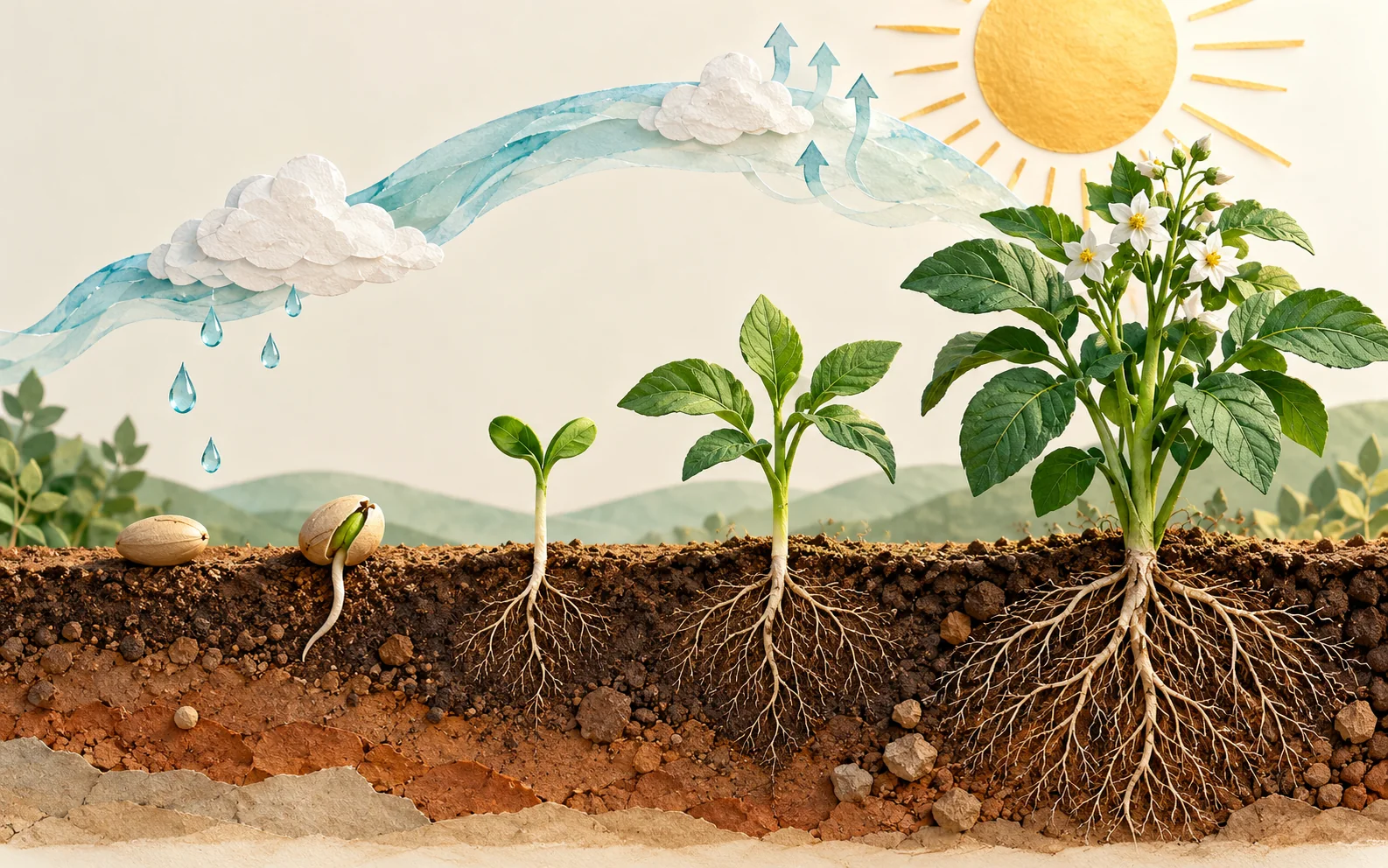
Break an idea into a few visual parts and specify their reading order. Leave room for labels you can add later, and verify the information before publishing.
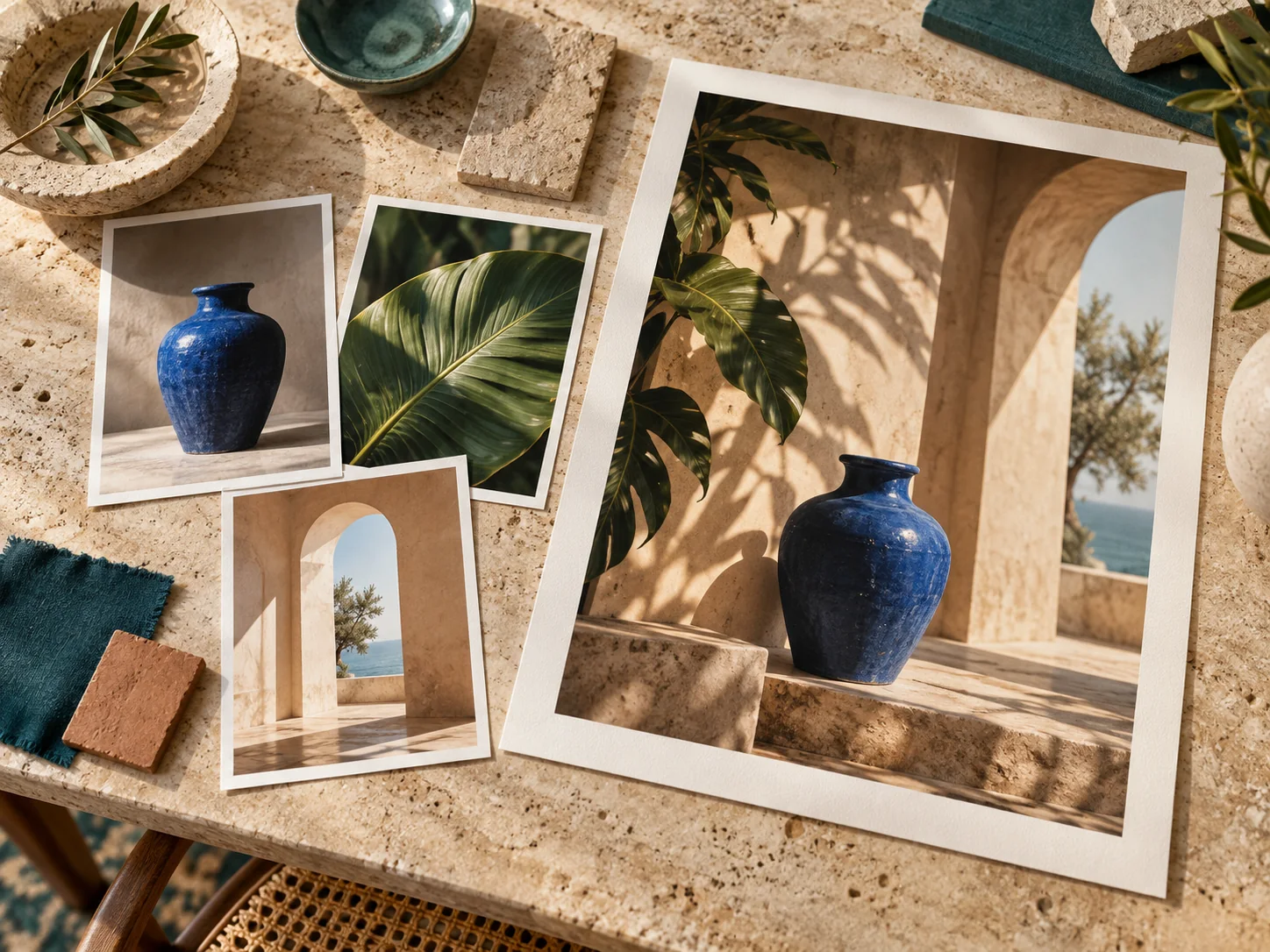
Write down the palette, materials, and spatial relationships you want to try. Use references where supported, and compare the generated study with the requirements of your project.
From a prompt to a considered revision
Use the AI image generator in a short review cycle: prepare the inputs, inspect the output, and give the next version a specific goal.
01
State the subject, composition, light, and intended use. Add a reference only when it contributes something you can describe.
02
Select an image model and a supported input mode. Check the available image settings and credit cost, then sign in to submit.
03
Look beyond the focal point. Check edges, proportions, background objects, and any text at the size you intend to use.
04
Open a saved task in the workspace and reuse its inputs. Check restored references and change the instruction that addresses your review notes.
Before you generate
A few practical choices can make a prompt easier to prepare and a result easier to assess.
No reference is needed for a text-to-image task. If a particular subject or composition matters, choose an input mode that accepts images and explain which features the reference should guide.
Write the exact wording and its intended position. Check every word in the result. For precise campaign copy, you can instead reserve empty space and add the final text in your layout tool.
Use an aspect ratio offered by the selected model and describe the composition for that placement. Review each version separately; a wide banner and a vertical cover need different spacing.
Identify one concrete issue, such as a crowded background or a misplaced light source. Revise that part of the prompt and review the cost before generating another version.
Generation uses credits according to the selected model and settings. Image downloads require a valid paid entitlement. Check the available plans and your account before planning the final handoff.
Create on Seedream 5.5
Open the AI image generator, describe the picture you want to explore, and choose the inputs for your first version.