
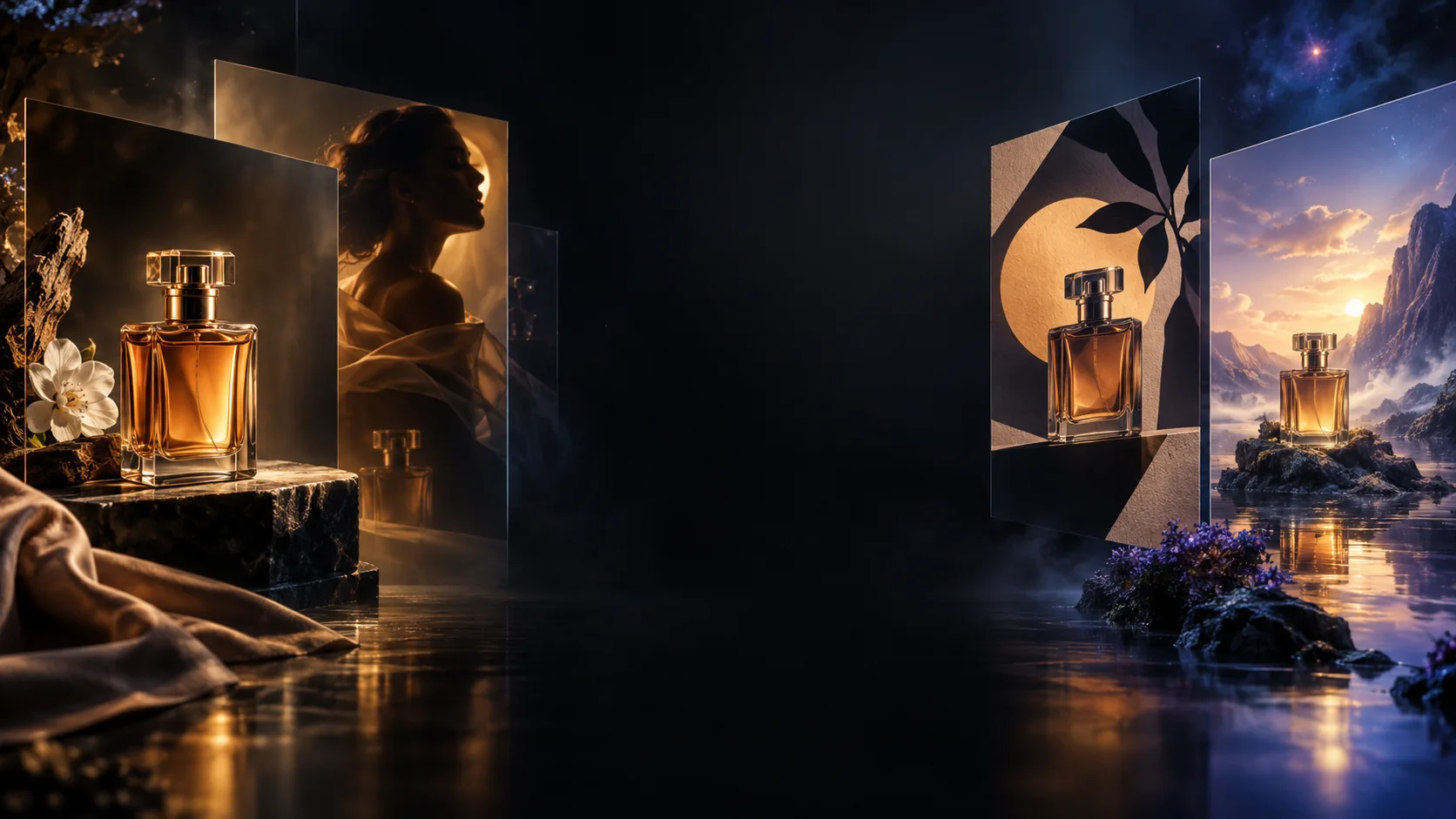
Adjustable complexity
Choose low, medium or high planning complexity separately from rendering quality. Try a focused change first, then compare a more involved composition.
GPT Image 2.6 pairs detailed image generation with precise visual editing. Explore Sunburst and Flare for product scenes, readable posters, vector graphics and looping animations. Give your next idea a clear visual direction.
What is new in GPT Image 2.6?
Shape the composition, guide an edit and choose the right format for your idea. GPT Image 2.6 brings flexible image planning, SVG graphics and animated GIFs to creative workflows.
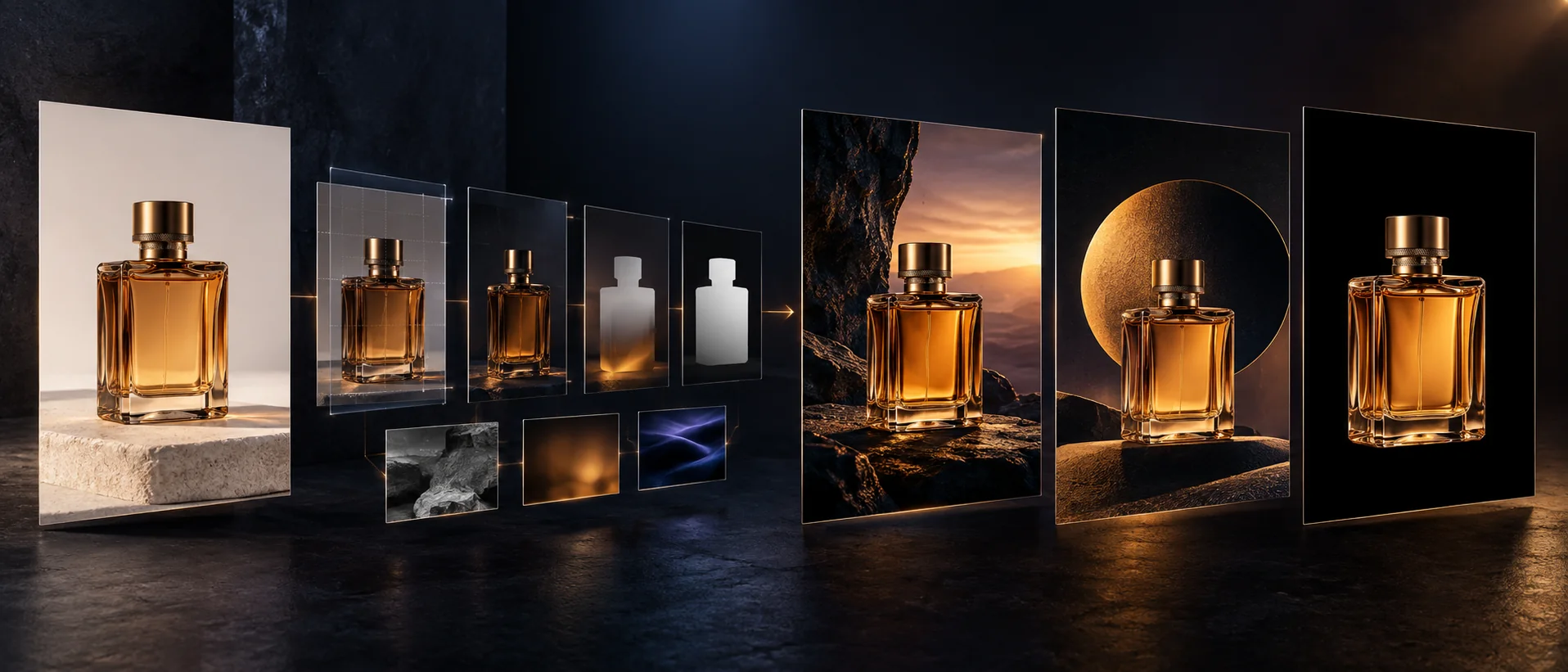
Explore composition, materials and lighting for your next creative direction.
Choose low, medium or high planning complexity separately from rendering quality. Try a focused change first, then compare a more involved composition.
A transparent PNG annotation layer can guide changes to the first reference image. Pair the visual mark with a clear description of what should change and what should stay.
Generate vector output for icons and illustrations. Plan a small palette and simple shapes, then inspect the paths before using the result in a design.
Generate a short animation from a written motion brief. Define the subject, the movement and how the loop returns to its starting pose.
Practical image workflows
Turn a product, campaign or visual idea into a focused image brief. Define the scene, organize the message and refine the details that make the result your own.
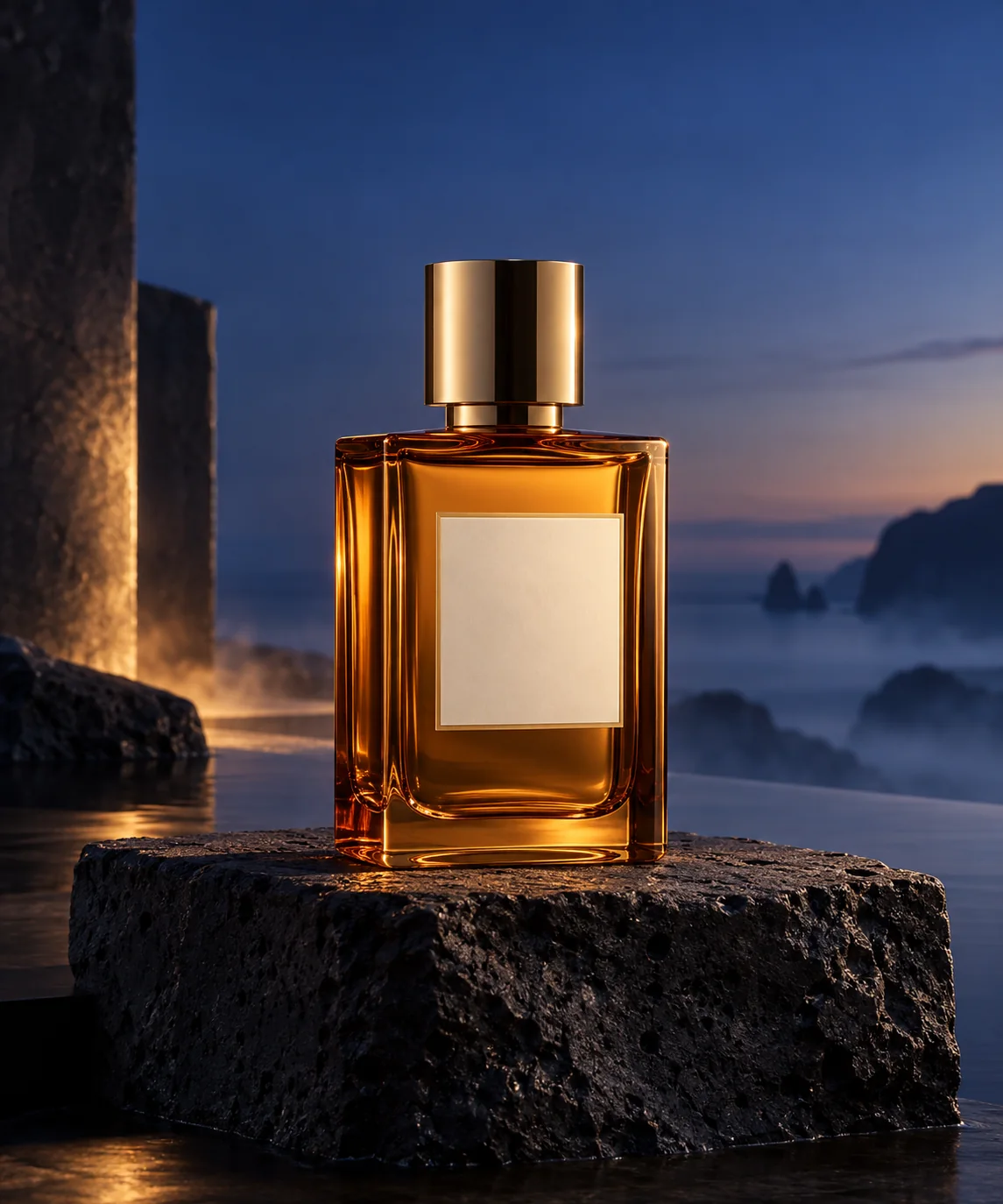
Specify the product angle, material, light and background. If you upload a reference, identify the packaging details that must remain recognizable. Inspect labels and edges before publishing.
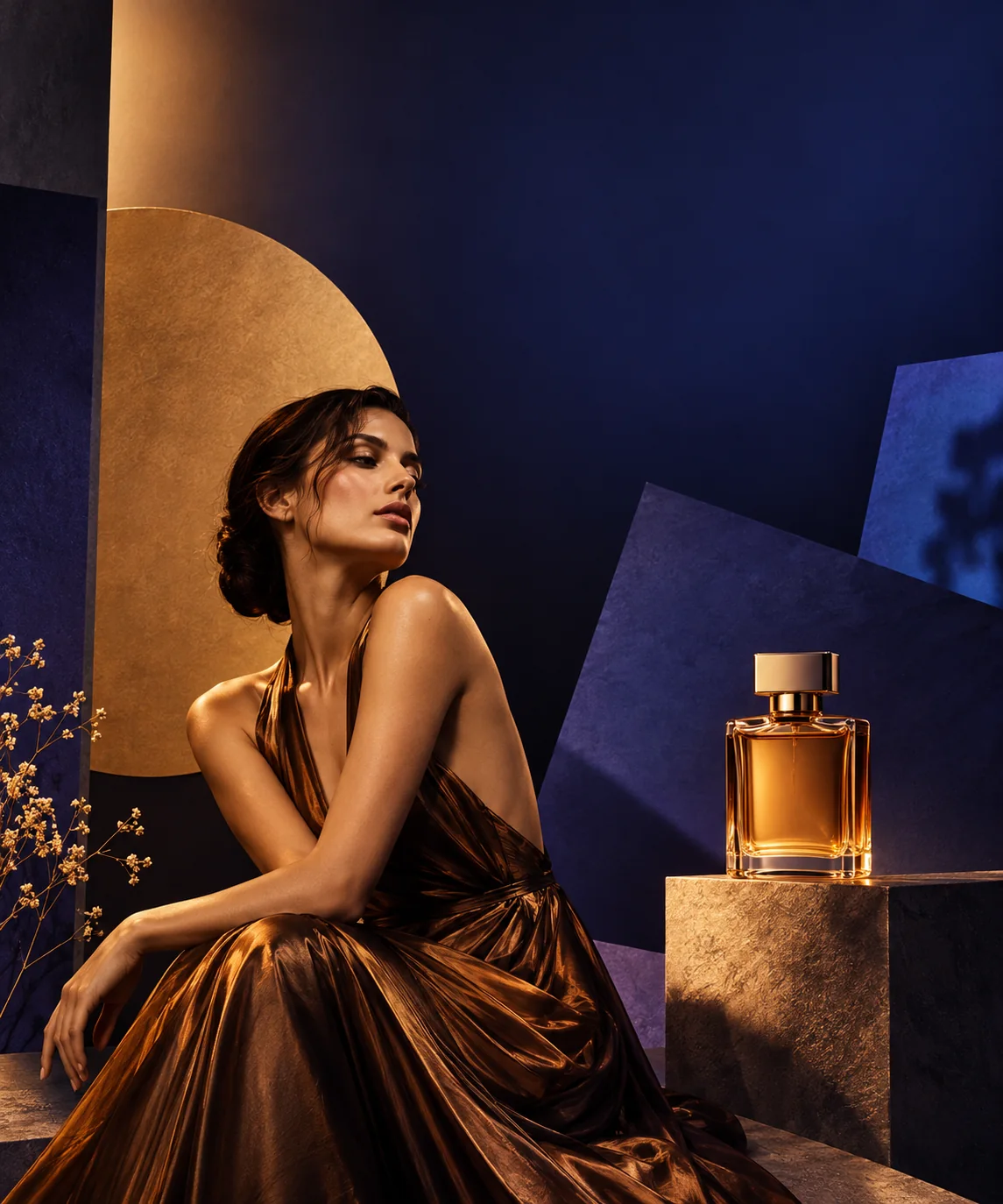
Separate the headline, supporting copy and empty space. Put required wording in quotation marks, name its language and check spelling at the final display size.
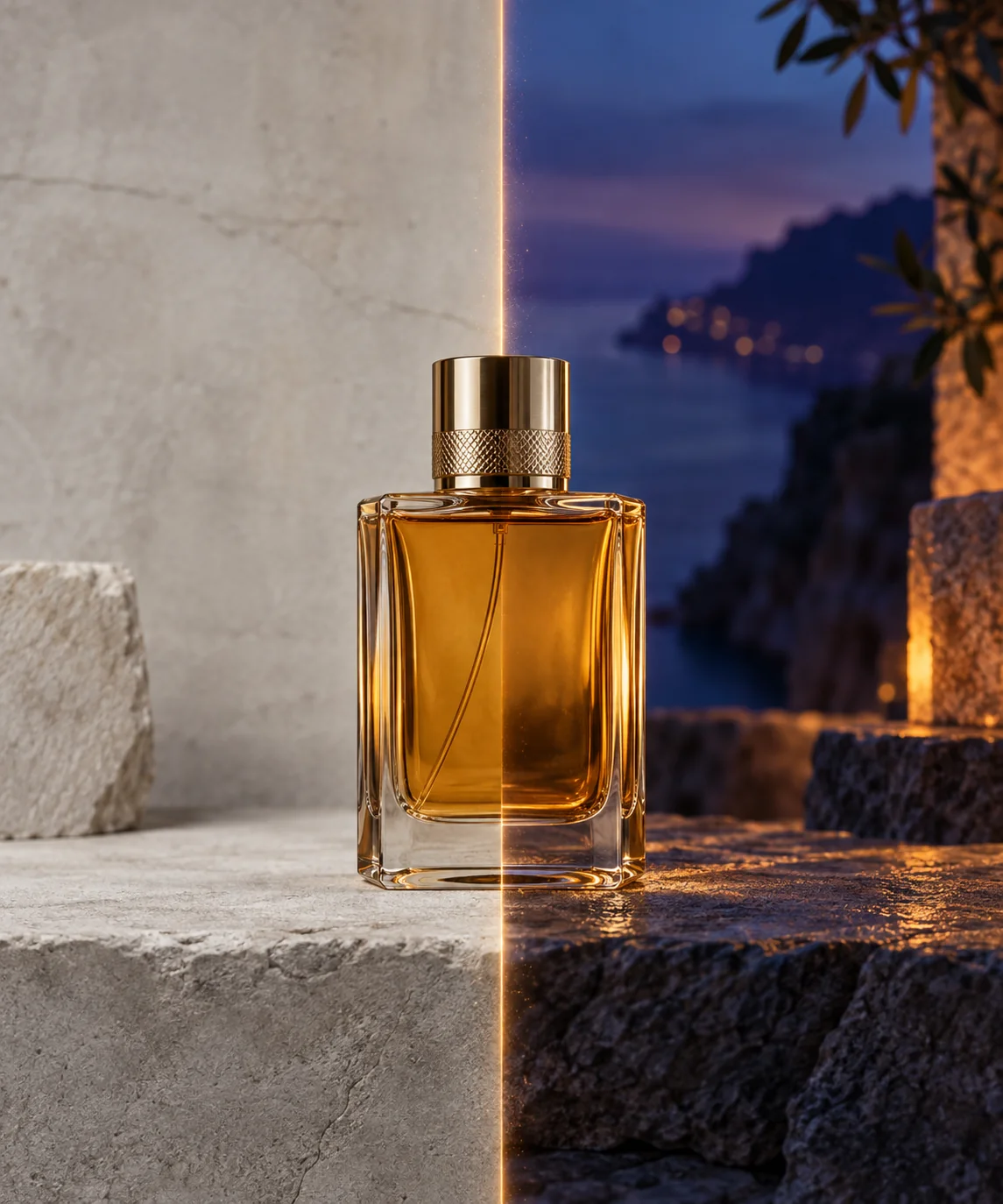
Ask for a new background, color or prop while naming the lighting, framing and subject details to keep. Compare the original and edited image before requesting another revision.
Create in Seedream 5.5
Build a clear brief, choose your settings and refine the image in a few focused steps.
01
Decide whether you need a product scene, a poster or a focused edit. Set the subject, mood and final use before adding detail.
02
Describe the subject, composition and purpose. Explain whether each reference supplies the product, palette or layout.
03
Set the image format and generation options, then review the credit total and create your first version.
04
Check text, object details and crop. Change one instruction at a time so the next result answers a specific creative question.
GPT Image 2.6 prompt guide
Use this structured prompt to connect the subject, layout, lighting and exact wording. Replace the details with your own product and campaign direction.
Product campaign: a clear scene and one revision
PURPOSE: A portrait campaign image for a small ceramic studio. SUBJECT: One handmade terracotta vase with an olive branch, on a warm cream surface. Preserve the vase silhouette and glaze details from the product reference. COMPOSITION: Place the vase slightly right of center. Leave the upper-left area open for the headline. Keep the background simple. LIGHT AND COLOR: Soft window light from the left, a gentle shadow, warm clay and muted green. TEXT: Include only the headline "Made for quiet moments" in a clear, readable style. No extra words or logos. REVISION: For the next version, change only the background to pale sage. Preserve the product, framing, headline and light direction.
State the intended use
A product listing, poster and icon need different framing. Name the final format and where the image will appear.
Separate text from art direction
Supply the exact words and language. Explain the hierarchy instead of asking for vaguely better typography.
Name the details to preserve
For an edit, list the objects, colors or camera angle that should remain. Avoid changing several unrelated things in one revision.
Describe motion when making a GIF
Specify a short action, a stable camera and the starting and ending pose. Keep the movement simple so the loop feels deliberate.
Sunburst and Flare
Explore detailed composition with Sunburst and quick creative variations with Flare. Start with a specific brief and build on the direction you like.
Develop layered compositions, product scenes and edits with carefully defined visual relationships. Specify the materials, lighting and details that give the scene its character.
Plan a detailed promptExplore alternate compositions, color palettes and creative directions. Keep the brief focused and vary one element to compare the results.
Build your creative workflowCombine a clear prompt with references for the product, palette or framing. Turn the strongest direction into your next image project.
Open the image workspaceGPT Image 2.6 FAQ
Find the right approach for your next image, from the first brief to a focused revision.
GPT Image 2.6 is OpenAI’s image generation and editing model family, with Sunburst and Flare variants. Its capabilities include adjustable complexity, markup-guided editing, SVG graphics and animated GIFs.
Sunburst focuses on detailed visual work and carefully specified edits. Flare focuses on fast, interactive creation and iteration. Use the same brief to explore the approach that fits your project.
Visit the Seedream 5.5 pricing page to compare plans and credit packages. The workspace shows the credit total for your selected generation settings before you submit.
GPT Image 2.6 adds adjustable complexity, SVG generation and animated GIF generation. It also supports markup-guided editing for directing changes with visual annotations.
Describe the subject, composition, lighting and intended use. Include exact wording for any text and explain the role of each reference. For an edit, name the details to change and the ones to preserve.
Use SVG generation for scalable icons, illustrations and graphic elements. Use animated GIF generation for short looping movements, expressive characters and small motion accents.
Place circles, marks or sketches on a transparent PNG layer that matches the first image’s dimensions. Pair those annotations with a clear description of the change and the details to preserve.
Supply exact wording, define its placement and repeat the same palette, lighting and reference details across the series. Review the images together and refine one detail at a time.
Your next image project
Start with a prompt and your references. Shape the composition, explore variations and refine the details in Seedream 5.5.